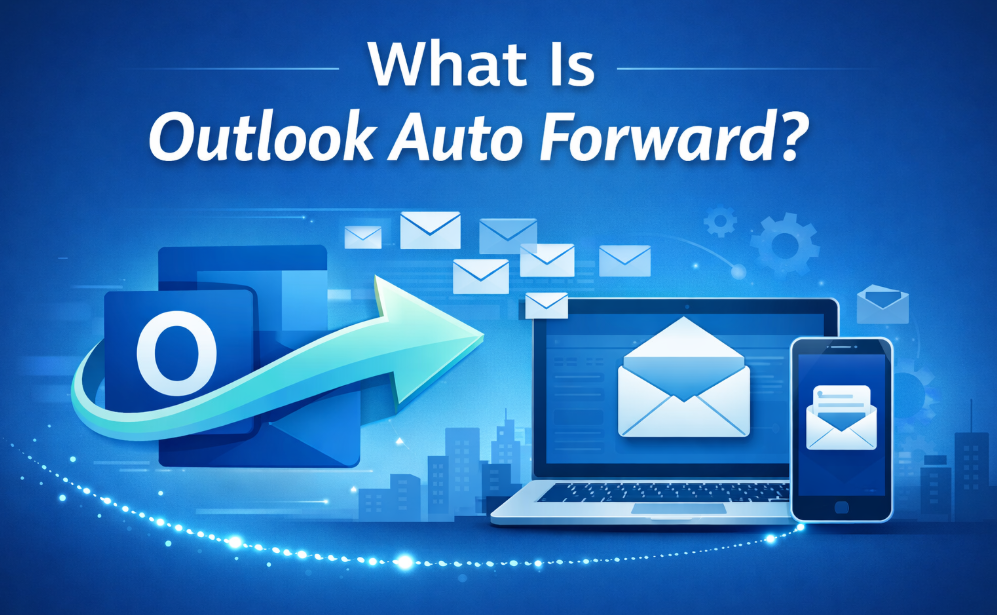
Email is a very important part of our communication at work and in personal life. As one of the most popular email clients, Microsoft Outlook provides a variety of features in order to enable users to handle emails effectively. Outlook Auto Forward is one of such features.
Essentially, the Outlook Auto Forward will enable you to automatically forward the emails that are received by one Outlook account to another email account without necessarily having to forward an individual email. This is particularly effective in use among professionals who have multiple inboxes or teams that are dependent on common communication channels. Such tools and services as ExtractMails tend to emphasize the necessity of a streamlined email process, and auto forwarding is precisely the thing that can fit into that concept.
Understanding Outlook Auto Forward in Simple Words
Outlook Auto Forward is an automatic or manually controlled option which copies incoming mails to a new email address. When it is configured, all the email that fits your predetermined specifications is forwarded automatically.
For example:
- You receive work emails in one inbox but want them sent to your manager as well.
- You’re switching jobs or roles and want emails forwarded to a new address.
- You want all support emails forwarded to a shared team inbox.
The best part? You don’t need to remember to forward emails manually—Outlook handles it for you.
Why Do People Use Outlook Auto Forward?
There are many practical reasons why individuals and businesses rely on this feature:
1. Managing Multiple Email Accounts
Many professionals use more than one email account. Auto forwarding helps keep everything in one place.
2. Team Collaboration
Emails can be automatically forwarded to team members or shared inboxes, ensuring no message is missed.
3. Backup and Record Keeping
Some users forward emails to another account for backup or archiving purposes.
4. Business Continuity
If someone is on leave, emails can be forwarded to another colleague to maintain smooth communication.
How Outlook Auto Forward Works
Outlook Auto Forward usually works in two main ways:
Rule-Based Forwarding
This is the most common method for individual users. You create rules inside Outlook that define:
- Which emails should be forwarded
- Where they should be forwarded
- Any conditions (like sender, subject, or keywords)
Admin-Level Forwarding
Administrators in organizations that use Microsoft 365 or Exchange can allow or block auto forwarding at the tenant level. This is usually done for security and compliance reasons, as highlighted by PenCraftedNews in its discussions on enterprise email management best practices.
Step-by-Step: How to Set Up Auto Forward in Outlook
Method 1: Using Outlook Rules (Desktop or Web)
- Open Outlook.
- Go to Settings or Rules.
- Create a new rule.
- Choose Apply rule on messages I receive.
- Select Forward it to people or public group.
- Enter the forwarding email address.
- Save the rule.
Once enabled, all matching emails will be forwarded automatically.
Outlook Auto Forward vs Manual Forwarding
| Feature | Outlook Auto Forward | Manual Forwarding |
| Time-saving | Yes | No |
| Automation | Fully automated | Manual |
| Risk of missing emails | Very low | High |
| Best for teams | Yes | No |
| Setup required | One-time setup | No setup |
This table clearly shows why auto forwarding is a preferred option for people who receive a high volume of emails daily.
Security Considerations You Should Know
While Outlook Auto Forward is extremely helpful, it also comes with security considerations:
Data Privacy Risks
Automatically forwarding emails to external addresses can expose sensitive data.
Company Policies
Many organizations disable external forwarding to prevent data leaks.
Compliance Issues
Forwarding certain emails may violate compliance standards like GDPR or internal company policies.
Always check with your IT team before enabling auto forwarding for work-related emails.
Common Use Cases of Outlook Auto Forward
For Remote Workers
Remote employees often forward work emails to a central inbox or shared system.
For Customer Support Teams
Support emails can be forwarded to ticketing systems or group inboxes.
For Freelancers and Consultants
Emails from clients can be forwarded to personal or backup accounts.
Outlook Auto Forward in Business Communication
Email management is very important in contemporary business and digital marketing activities. Speaking about such strategies as Email Marketing vs SEO, it is sometimes hard to notice email automation features, such as Outlook Auto Forward, but these are also significant. They guarantee quicker responses, coordination, and continuous communication which are some of the main components of successful business workflow.
Advantages of Using Outlook Auto Forward
- Saves time and effort
- Reduces chances of missing important emails
- Improves team communication
- Helps manage multiple roles and inboxes
- Works silently in the background
These benefits make it a practical feature for both individuals and businesses.
Limitations of Outlook Auto Forward
Despite its advantages, it’s not perfect:
- Some organizations block external forwarding
- Requires proper setup to avoid spam forwarding
- May clutter the forwarded inbox if not filtered correctly
To avoid these issues, it’s best to use specific rules instead of forwarding all emails blindly.
Best Practices for Using Outlook Auto Forward
- Use Filters Wisely – Forward only important emails.
- Avoid External Forwarding – Especially for sensitive business data.
- Monitor Forwarded Emails – Check occasionally to ensure rules are working properly.
- Inform Relevant Parties – Let team members know emails are being forwarded.
Following these practices ensures you get the most out of the feature without unnecessary risks.
Outlook Auto Forward for Productivity
Outlook Auto Forward can be very productive when it is applied appropriately. It minimizes the number of manual operations, ensures a fast exchange of information, and allows improved time management. It is a silent productivity helper to professionals who have a heavy dependency on email communication.
Final Thoughts
Outlook Auto Forward is a highly effective and yet simple service which enables users to remain organized and responsive in the current fast and dynamic digital world. As a business owner, an employee, or a freelancer, it is better to know how auto forwarding functions to save time and avoid opportunities.
Since email ecosystems become progressively more interchangeable, understanding how applications such as Outlook Auto Forward can be integrated with other applications, such as adding Outlook calendar to Google Calendar, can continue to improve the overall productivity and workflow efficiency.