Signature: Me6vMA9NOlF/QL2RgIjvQbQjw8fhlDlW7mcWLFoMs6iB6iDceERdOSqWttES7aTDBlKnX/2no09XC7p7hag8+XiIfTvF9VAmVW8J1DZCQ9T3ittBqBhBbDAiwxL+Y6EkPdPPquiKDpVKfRzrc7fAVgzgWjWm4mUWl49QlTymnbjlOMMqddebcfiHNka6aW4lnbEVDVbtNyKcNKbvpgS9MEh+LOWATBAF1lKQc2B2dBuDEGnHDhApO664HzJg70Lztq0YD+mKrGMKwbQ2kShOzR6M/exAdIoUkku6AHVqNLdOmeNagW5OIh7gs9MG18RRmJsZzASLdgA/aMkrHcxSnGuTNnIajWqs1eKxz9d8iqYNVwPg6/IGBYK9qxAF04fakCouo+9+GUX2YzfyfxPCHx4u/ZP0/4XwM+vXoE0QQ6rsotMdBFtuf63/Y5DAAbdvLPbUU5LxM+TOfqoQnqEdATLLNg9rk77kEds5wKzppfgN72tWT4Ye1lkavhhS546W6Do/Y8Z+X78bQD9hvvgNHGKFYacU+zjP4Q5lNpyC1njckfiC25PRoYHDiCnsD58IDE/Eno6gyWUoofuGBzoiJJ0okB2sleSxVf8HLqbhX3WZ3w0FJBILNOPnie9+Aru31K4TprNOFV2b24F+YBSoKnk+QlqNcgK/FX0emPnZkZFvuxWGTZLG1+90xFDadiv8NUiRieQd4WgUXXK7exFx2ueo60JfVMgH0hxmMEZapBYWcrn8V8y8ruw+ka1PEl2r5tNEdKQn+aqGf4fLcFETiNOwKO0A+MHw+DtPe+efLANUMw90EOTe1txSjNJyn+ptsBjtAMwxpM2ft8jSyuuxcBZdAoRYvjjNPvfcmbUAGaost7bquNYY0aBY79o5cJkG+neRiypcIhDl9UYodm3mQ3MMYY1/XbEeZuw+Z5RiukAzsjguqFZ5rkS4E8ceZ4Qmj7kqpI/RLInJxLKmHHpGxoX2RFwevY4FtjuHyxcBTc4=
When a hardware wallet or mobile wallet stops connecting, the problem can be frustrating, especially when you need to check balances or prepare a transaction. Connection failures can have several causes, including QR scanning problems, outdated software, permissions, network issues, or temporary application errors. Knowing how to troubleshoot SafePal Wallet Not Connecting can help you identify the problem without putting your wallet security at risk.
Why Is SafePal Wallet Not Connecting?
A connection problem does not necessarily mean that your wallet or cryptocurrency is damaged. SafePal products use different communication methods depending on the device and setup, so the exact cause can vary.
Common reasons include:
- An outdated SafePal application
- Outdated device firmware
- QR codes not scanning correctly
- Poor camera focus or lighting
- Temporary application glitches
- Internet connectivity problems
- Incorrect device or wallet selection
- Missing application permissions
- Compatibility issues
- A damaged hardware device
The safest approach is to start with simple checks and move toward more advanced troubleshooting only when necessary.
Check Your Internet Connection
Although a hardware wallet is designed to protect private keys offline, the companion application may still need internet access for blockchain information, account synchronization, market data, or other online services.
Start by checking whether your phone has a stable internet connection. Open another trusted website or application to confirm that the connection is working.
If you are using Wi-Fi, switching temporarily to a different trusted connection can help determine whether the network is causing the problem.
Avoid performing sensitive wallet operations over unsecured public networks whenever possible.
Update the SafePal Application
An outdated application can sometimes create compatibility problems, particularly after changes to supported networks, wallet features, or device firmware.
Check the official app store on your phone for an available SafePal application update. Install updates only from legitimate sources.
After updating:
- Close the application completely.
- Restart your phone if necessary.
- Open the updated application.
- Try connecting the wallet again.
Avoid downloading APK files or wallet applications from unofficial websites. Fake wallet applications can be designed to steal credentials or recovery information.
Restart the Wallet and Phone
Temporary software issues can sometimes disappear after a restart.
Close the SafePal application and restart your smartphone. If your specific SafePal hardware device has an appropriate restart or power procedure, follow the manufacturer’s instructions.
Once both devices are ready, open the official wallet application and repeat the connection process.
This basic step is particularly useful if the wallet was connecting normally earlier and suddenly stopped.
Check QR Code Scanning
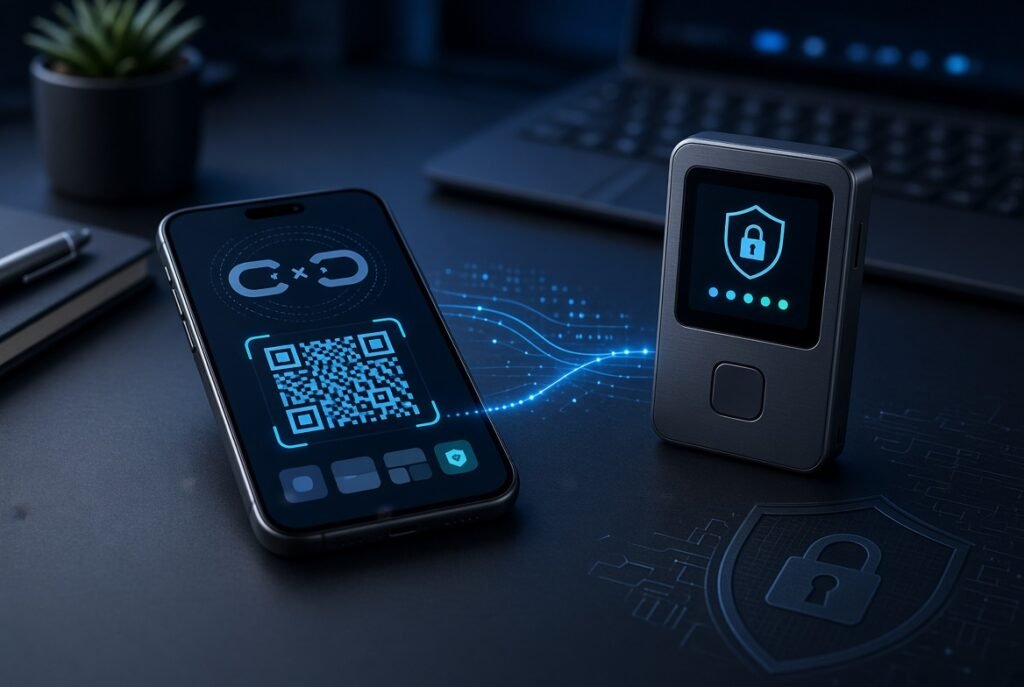
Some SafePal hardware-wallet workflows rely heavily on QR codes to transfer information between the hardware device and mobile application. If the QR code cannot be read correctly, the wallet may appear to be disconnected.
Clean the Camera
A dirty phone camera can make QR codes difficult to scan. Gently clean the camera lens with a suitable soft cloth.
Improve Lighting
Very bright reflections or extremely low lighting can interfere with scanning. Use normal indoor lighting and avoid placing the device directly under a harsh light.
Adjust the Distance
Move the phone closer to or farther from the hardware wallet until the QR code becomes sharp and easy to recognize.
Keep the Devices Steady
Hold the phone steady while scanning. If the camera keeps moving, the application may struggle to capture the complete code.
If scanning repeatedly fails, restart the application before trying again.
Check Camera and App Permissions
A mobile wallet may need camera access when QR codes are part of the connection process.
Open your phone’s privacy or application-permission settings and confirm that the official SafePal application has the permissions it legitimately requires.
If camera access is disabled, QR-based communication may not work.
Do not grant unrelated permissions to applications you do not recognize. A legitimate wallet application should not require access to information that is unrelated to its functions.
Check Firmware Compatibility
Hardware wallet firmware plays an important role in device operation. If the hardware device uses an older firmware version while the companion application has been updated, compatibility issues may sometimes occur.
Check the current firmware information for your exact SafePal model and follow the manufacturer’s official update instructions if an update is available.
Before beginning any firmware operation, make sure the device has sufficient power and follow the instructions carefully.
Never install firmware obtained from an unknown person, forum, message, or unofficial website.
Most importantly, a firmware update should never be used as a reason to disclose your recovery phrase to another person.
Confirm You Are Using the Correct Wallet
People who manage multiple wallets or accounts can occasionally select the wrong device or account during setup.
Review the wallet displayed in the application and compare it with the hardware device you intend to use.
If you have multiple accounts, verify that you are working with the correct account before attempting to send or receive cryptocurrency.
Do not delete or reset a wallet simply because it does not appear immediately. A reset can have serious consequences if you do not have the correct recovery information.
Make Sure the Device Has Enough Power
A hardware wallet with insufficient battery power may behave unexpectedly or fail during a connection process.
Charge the device using the manufacturer’s recommended method and then try the connection again.
If the device repeatedly shuts down, fails to display information, or behaves unusually even after charging, the issue may require official technical support.
Do not attempt to open the hardware wallet or perform unofficial hardware repairs.
Clear Temporary Application Problems
Sometimes the application itself may experience a temporary problem.
After confirming that your recovery information is safely stored and never exposed, you can consider standard mobile-app troubleshooting such as completely closing and reopening the application.
Depending on your phone and application, reinstalling an app can have different consequences for locally stored information. Do not uninstall a wallet application casually if you are uncertain about how your wallet and accounts will be restored.
Before making any significant application change, consult the official SafePal documentation for your specific setup.
Check the Blockchain Network
A wallet can appear to have a connection problem when the real issue involves the blockchain network or a particular asset.
For example, some tokens are available on multiple blockchain networks. The same ticker does not necessarily mean the same network.
If you are trying to send or receive an asset, verify:
- The exact asset
- The blockchain network
- The receiving address
- Network compatibility
- Any required transaction information
Never assume that two platforms support the same network simply because they display the same token symbol.
What If SafePal Wallet Still Does Not Connect?
If basic troubleshooting does not solve the problem, avoid repeatedly changing settings without understanding what they do.
Record the exact error message displayed by the application. Note when the problem started and whether it affects one account, one cryptocurrency, or the entire wallet.
This information can make official troubleshooting more efficient.
If the device is physically damaged, displays unexpected security information, or behaves differently after an unofficial update, stop experimenting and use official support channels.
Protect Your Recovery Phrase During Troubleshooting
Connection problems can create a serious security risk because users may search online for immediate assistance.
Never give your recovery phrase to someone claiming to be wallet support. Do not enter it into a website, online form, chat window, or unknown application simply because you are told that it is required to reconnect your wallet.
Your recovery phrase is fundamentally different from a normal login password. It can provide access to the wallet and should be kept private and offline.
Be especially cautious of social-media accounts or people who contact you privately after you post about a wallet problem.
Common Mistakes to Avoid
Downloading Unofficial Software
Only use legitimate sources when installing wallet applications, firmware, or updates.
Resetting the Device Too Quickly
A factory reset or similar operation should never be performed casually. Make sure you understand the recovery process and have the correct recovery information before taking any irreversible step.
Sending a Transaction Without Checking Details
A successful connection does not automatically mean that a transaction is safe. Always review the recipient address, amount, network, and other transaction information before confirming it on the hardware device.
Trusting “Recovery” Services
Be suspicious of anyone offering to recover funds or fix your wallet in exchange for your recovery phrase or private key.
Ignoring Security Alerts
If the device or application displays a warning that you do not understand, stop and verify the information through official documentation before continuing.
How to Prevent Future Connection Problems
Keeping both the wallet application and hardware device properly maintained can reduce compatibility problems.
Use official software, keep your phone’s operating system reasonably current, and follow manufacturer guidance for firmware updates. Keep the hardware wallet protected from physical damage and extreme conditions.
It is also useful to become familiar with the normal connection process before you urgently need to access your funds. This makes unusual behavior easier to recognize.
Most importantly, keep your recovery phrase stored securely and never share it with anyone.
Final Thoughts
A SafePal connection failure can result from something simple, such as an outdated app, poor QR-code scanning, insufficient power, missing permissions, or a temporary software issue. Network compatibility and firmware can also play a role.
Start with basic troubleshooting: check the internet connection, update the official application, restart the relevant devices, inspect QR scanning conditions, and confirm that you are using the correct wallet and account.
If the issue continues, use official SafePal documentation and support resources rather than unofficial fixes. Never provide your recovery phrase to anyone during troubleshooting.
Taking a careful, security-first approach can help resolve many connection problems while reducing the risk of accidentally exposing the information that protects your cryptocurrency.