Fix Windows Not Booting Issue on Laptop
The inability of your laptop to start up to Windows can lead to not only work disruption but also stress. These issues may be more prevalent than you would imagine, starting from a blank screen to loops of constant restarts. The positive thing is that lots of these issues can be addressed through the appropriate strategy. In this guide we are going to present practical solutions in a structured and clear manner. How to Fix Windows Not Booting Issue on Laptop with our technicians.
At UrbanClap, customers are likely to experience boot problems. Majority of these issues are fixable without having to change the entire system.
Why Your Laptop Is Not Booting
It is important to know the cause before remedying the problem. Common reasons include:
-
Corrupted Windows system files
-
Interrupted or failed updates
-
Hard drive or SSD failure
-
Malware or virus infection
-
Incorrect BIOS/UEFI settings
Every issue requires a variant of solution, thus the ability to identify symptoms allows making the process faster.
Basic Troubleshooting Steps
Simple checks should be started with, and then advanced solutions should be resorted to.
-
Ensure your charger and battery are working properly
-
Remove all external devices (USB, mouse, hard drives)
-
Check if the laptop shows any lights or fan activity
In other cases, the issue is not necessarily with the software. It may be due to power or hardware interruptions.
Perform a Hard Reboot
Hard rebooting can correct any temporary glitches within your system.
-
Turn off your laptop completely
-
Remove the battery (if possible)
-
Press and hold the power button for 15–20 seconds
-
Reconnect everything and restart
This discharges electrical residual energy and re-initiates small hardware errors.
Boot in Safe Mode
Safe Mode enables windows to boot with a minimum of drivers.
-
Restart your laptop
-
Press F8 or hold Shift + Restart
-
Select Safe Mode
In case your system successfully boots, remove the newly installed drivers or updates. This process normally fixes software conflicts without any more detailed fixes.
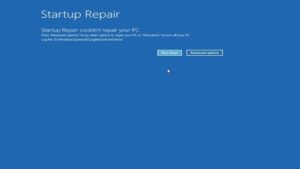
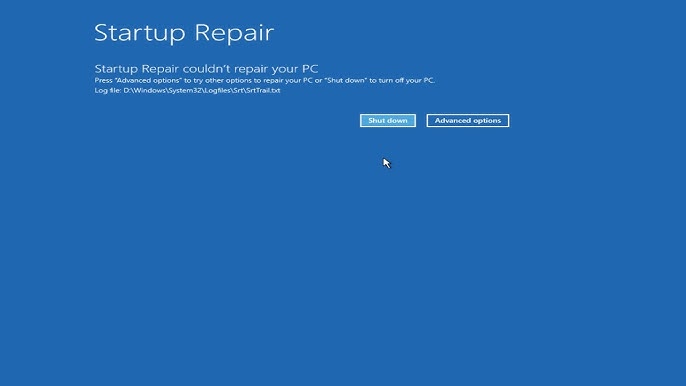
Use Windows Startup Repair
Windows offers an inbuilt recovery utility:
-
Insert a Windows installation USB or access recovery mode
-
Go to Troubleshoot > Advanced Options
-
Click Startup Repair
This is an automated utility that will scan and automatically correct boot issues effectively.
Run System Restore
If the issue started recently, restoring your system can help:
-
Open Advanced Options
-
Select System Restore
-
Choose a restore point from a previous working date
This method keeps your personal files intact while reversing system changes.
Check Disk for Errors
In case the problem has just begun, it is possible to restore your system:
-
Open Command Prompt from Recovery Mode
-
Run: chkdsk /f /r
This command scans to identify bad sectors and fixes disk errors. When you keep on crashing your laptop, then it may be time to visit a Laptop Repair Dubai expert to have a more thorough check-up.
Reset or Reinstall Windows
If all else fails, resetting Windows is the last option:
-
Go to Troubleshoot > Reset this PC
-
Choose Keep my files or Remove everything
This step reinstalls Windows and fixes major system errors. It’s a good idea to back up your data first.
When to Seek Professional Help
The issue may sometimes exceed simple troubleshooting. Hardware problems, such as a broken motherboard, Ram problems, or a dead SSD require expert assistance. In such situations, having a good laptop repair shop near me will help to save a lot of time as well as prevent further damage.
Conclusion – Fix Windows Not Booting Issue on Laptop
A laptop which does not boot to Windows may not be a lost cause. You can solve many problems by using structured troubleshooting. This ranges from simple reboots to complex recovery software. Early action will help avoid loss of data and costly repairs.
In case you are uncertain about taking these actions, seek expert help. They will take care of your laptop in a safe and efficient way. For more details, call our toll-free number at 045864033.