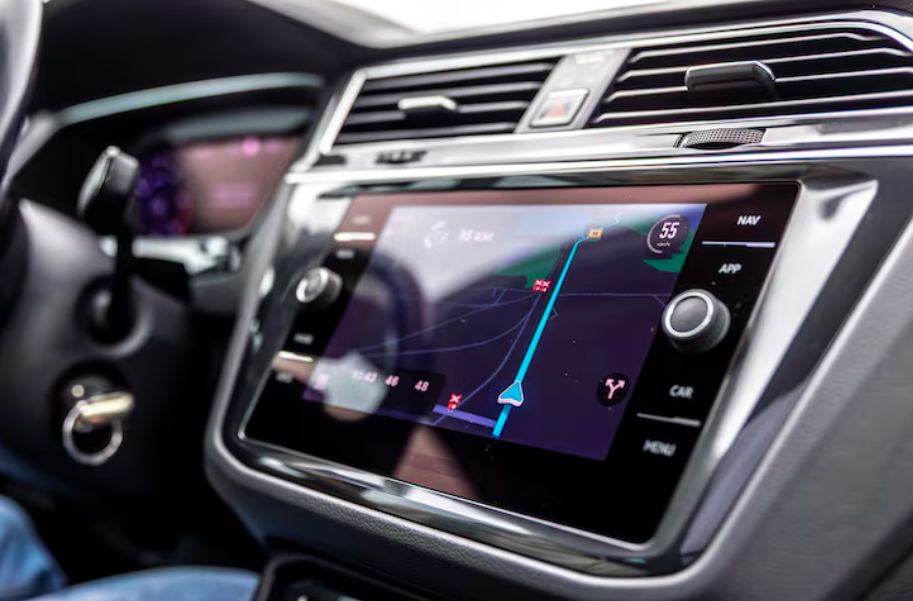
You get into your Toyota, start the car, and expect the navigation screen to guide you. Instead, the display stays frozen, the map refuses to load, or the touchscreen simply does nothing. Frustrating, right?
Before you assume the system needs a major fix, there are a few things you can check yourself. In many cases, the problem comes from a temporary software issue, a connection problem, or a system that simply needs to restart.
Let’s walk through the most common causes and what you can safely check.
1. Start With a Simple System Restart
Sometimes the navigation system is not actually damaged. It may just be stuck.
Think of it like your phone. If an app stops responding, restarting the phone can often clear the problem. Your Toyota’s multimedia system can behave in a similar way.
Try these basic steps:
- Park the vehicle safely before troubleshooting.
- Turn the vehicle off completely.
- Open and close the driver’s door.
- Wait a few minutes before restarting the vehicle.
- Turn the vehicle back on and check the navigation screen.
If the screen responds normally after restarting, the issue may have been temporary.
2. Check Whether the Entire Screen Is Frozen
Pay attention to what the screen is doing.
Is the navigation the only feature that has stopped working, or is the entire multimedia system frozen?
Try opening another function, such as:
- Audio
- Bluetooth
- Phone
- Settings
- Vehicle information
If other features work but navigation does not, the problem may be limited to the navigation software or map data.
However, if the entire touchscreen is frozen, the issue could be broader. In that situation, repeatedly pressing the screen will not help and may only add frustration.
3. Look at Your GPS Signal
Navigation depends on GPS information to determine where your vehicle is located. If the GPS signal is weak or unavailable, your map may show the wrong location or fail to update properly.
This can happen in places such as:
- Underground parking areas
- Covered parking structures
- Areas surrounded by tall buildings
- Locations with heavy overhead coverage
Move the vehicle to an open outdoor area and give the system some time to find its position.
If your Toyota still shows an incorrect location after getting into an open area, the problem may need further checking.
4. Check Your Phone Connection
If you use your phone with the Toyota multimedia system, do not immediately blame the vehicle’s navigation system.
A phone connection can sometimes create confusion when Bluetooth, Apple CarPlay, or Android Auto is involved.
Try disconnecting your phone and checking whether the Toyota’s built-in functions respond normally without it.
You can also:
- Restart your phone.
- Turn Bluetooth off and back on.
- Reconnect the phone.
- Check whether your phone’s software is up to date.
- Test the navigation without connecting the phone.
This simple test can help you determine whether the problem is inside the vehicle or related to the connected device.
5. Check for Software or Map Updates
Navigation systems depend on software and map data. If either becomes outdated or develops an issue, navigation may not behave as expected.
Check your Toyota’s system settings for available software or map updates. Depending on your vehicle model and multimedia system, the update process can be different.
Before installing anything, make sure you follow the instructions intended for your exact Toyota model and system.
If you are unsure which update applies to your vehicle, contacting a qualified Toyota navigation service provider can save you from installing the wrong file or following the wrong procedure.
6. Notice When the Problem Started
A small detail can make troubleshooting much easier: remember what happened before the navigation stopped responding.
For example, did the problem begin after:
- A battery replacement?
- A vehicle service?
- A software update?
- A phone connection?
- A very hot or cold day?
- A sudden electrical problem?
If the navigation stopped working immediately after another vehicle-related issue, tell the technician about it. That information can help narrow down the possible cause instead of starting from scratch.
7. Pay Attention to the Screen Itself
Your screen can also give you clues.
A completely black display may point to a power or display-related problem. A screen that lights up but does not respond to touch may suggest a touchscreen or software issue. A navigation system that works but repeatedly loses location may point toward a GPS-related concern.
Do not try to remove the dashboard unit yourself unless you have the right experience and tools. Modern Toyota multimedia systems can involve wiring, electronic modules, and other components that are better handled by a trained professional.
When Should You Stop Troubleshooting?
If restarting the system, checking the phone connection, and testing the GPS signal do not solve the problem, it may be time to get professional help.
You should especially consider professional inspection if:
- The screen stays completely black.
- The system repeatedly freezes.
- Navigation keeps showing the wrong location.
- Touch controls do not respond.
- The system restarts by itself.
- Multiple multimedia functions have stopped working.
- The problem returns after every restart.
At this point, guessing can waste time and potentially make the issue harder to diagnose.
Summing Up:
A Toyota navigation system that stops responding does not always mean an expensive failure. Start with the basics: restart the system, check whether other functions work, test the GPS in an open area, disconnect your phone, and look for suitable software or map updates.
If the problem continues, professional car navigation repair can help identify whether the issue is related to software, GPS, the touchscreen, wiring, or another internal component. Getting the right diagnosis is important because it prevents you from replacing parts that may not actually be faulty.