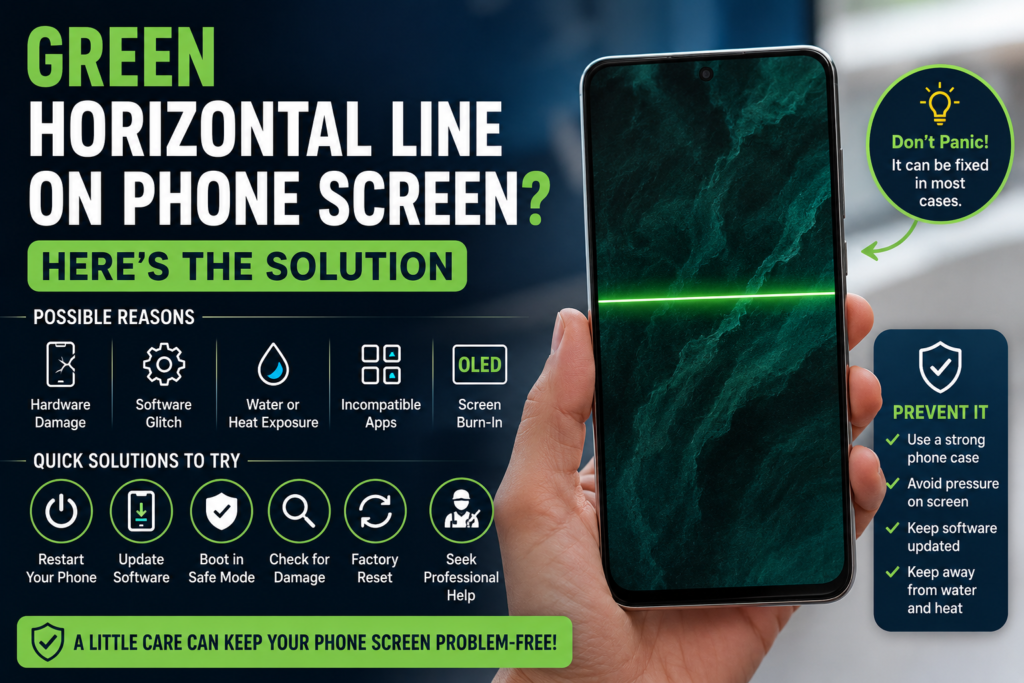
A green horizontal line on phone screen can appear suddenly while you are chatting, browsing, watching videos, or working. However, software glitches, display faults, heat, moisture, and incompatible apps can affect screen performance.
This guide covers troubleshooting.
Common Causes
Software Glitches
A temporary operating-system or graphics error can affect colours and screen rendering. Restarting the phone may clear the problem. A recent software update can also create compatibility issues with display drivers.
Hardware Problems
A damaged OLED or AMOLED panel, loose connector, or failing display component can produce a persistent line. If the green horizontal line on phone screen remains during startup and inside every application, hardware is more likely to be responsible.
Water and Heat
Moisture can affect internal connectors, while excessive heat can damage electronic components. If the phone was recently exposed to water, steam, sunlight, or high temperatures, avoid continued heavy use until it has been checked.
Incompatible Apps
Some applications can interfere with screen overlays, graphics, colours, or refresh-rate settings. If the problem started after installing an app, Safe Mode can help identify whether software is involved.
Screen Ageing
OLED and AMOLED panels can develop permanent irregularities over time. Physical pressure, panel degradation, or prolonged static images may contribute to lines or colour changes.
How to Fix the Problem
1. Restart the Phone
Restarting is the easiest troubleshooting step. Turn the device off, wait for a few seconds, and turn it on again. A temporary display error may disappear after rebooting.
If the green line on Android phone screen disappears after restarting, monitor the device for a while. If the line returns, continue with the following steps.
2. Update the Software
Open Settings and check for an available system update. Manufacturers release patches for display and performance problems.
After installing an official update, restart the device and check the screen. An update may resolve a software-related green horizontal line on phone screen without requiring repair.
3. Use Safe Mode
Safe Mode temporarily disables most third-party applications. If the display works normally there, a recently installed app could be responsible.
Remove suspicious or recently installed apps one at a time, then restart the phone. This helps investigate a green line on Android phone screen.
4. Inspect for Physical Damage
Check the phone for cracks, dents, bends, or signs of moisture. A drop can damage the display panel or loosen an internal connector even when the outer glass looks normal.
Do not open the device unless you have suitable repair experience. Internal display components are delicate, and incorrect handling can make the green horizontal line on phone screen worse.
5. Avoid Pressing the Display
Some online tips recommend pressing or tapping the affected area. This is not recommended because excessive pressure can damage OLED or AMOLED panels.
If the green horizontal line on phone screen remains visible, protect the device and seek professional inspection instead of attempting risky physical fixes.
6. Consider a Factory Reset
A factory reset can help with certain persistent software problems, but it erases personal data and settings. Back up photos, contacts, documents, and other important files first.
A reset should be considered only after simpler methods have failed. It is unlikely to fix a physically damaged panel or connector. If a green line on Android phone screen continues after a reset, professional diagnosis is appropriate.
When Should You Visit a Service Centre?
If the green horizontal line on phone screen remains after restarting, updating software, and testing Safe Mode, the problem may be hardware-related. A qualified technician can inspect the display, connectors, motherboard, and related components.
Seek help after a drop, water exposure, or impact. Check warranty terms first.
In some cases, a green line on Android phone screen may require display replacement. Repair costs depend on the phone model, panel technology, parts availability, and service provider.
A persistent green horizontal line on phone screen deserves attention. Check whether the green horizontal line on phone screen appears before unlocking. The green horizontal line on phone screen may indicate panel failure. Record when the green horizontal line on phone screen first appeared.
For a green line on Android phone screen, note recent updates. A green line on Android phone screen can follow a drop. Check whether a green line on Android phone screen appears in Safe Mode. A green line on Android phone screen may remain after resets.
Persistent green line on Android phone screen needs professional diagnosis. Document the green line on Android phone screen before service. Before repair, photograph the green horizontal line on phone screen. If a green line on Android phone screen persists, save your data.
Final Thoughts
A green horizontal line on phone screen can be caused by software or hardware, so the right solution depends on the underlying fault. Restarting, updating the system, testing Safe Mode, and checking physical damage are sensible first steps.
If a green line on Android phone screen continues across restarts, applications, and startup screens, avoid pressing the display or opening the device. Instead, back up your data and contact an authorised or qualified service centre.
Remember that a green horizontal line on phone screen is not automatically a sign that the entire phone is unusable. Careful troubleshooting can help identify the cause, while professional repair can address persistent hardware faults.