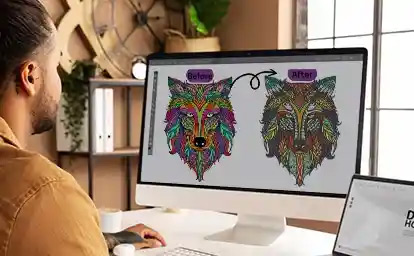
Your logo is the cornerstone of your brand’s visual identity. When it’s time to translate that digital asset into the physical world of embroidered apparel, the goal is perfection: crisp edges, perfect color registration, and a professional finish that commands respect. Achieving this on your Babylock machine requires more than just transferring an image; it demands a precise translation into the language your machine understands. The key to this flawless execution is mastering how to Convert Logos into BAi Embroidery Files. This process, when done correctly, guarantees stitch results that are clean, durable, and worthy of your brand.
Introduction: The BAi File is Your Machine’s Master Script
Think of your digital logo file—whether it’s a JPG, PNG, or vector AI file—as a detailed concept sketch for a mural. It defines the vision, colors, and composition. The BAi file, however, is not another sketch. It is the master painter’s detailed plan: the exact brushstroke sequence, the specific paint mixes, and the layering order needed to recreate the mural flawlessly on a specific wall.
For your Babylock embroidery machine, the BAi format is this master script. It contains no image data; instead, it is a meticulous list of machine commands: needle coordinates, stitch type instructions, color change signals, and trim functions. Converting your logo is the act of writing this script from the concept sketch. A perfect script leads to a perfect performance—a stitchout that is stable, sharp, and visually identical to your original intent.
Phase 1: The Foundational Audit – Preparing Your Logo
Perfection is impossible if you start with a flawed or unsuitable original. This phase is about setting the stage for success.
1. Secure the Highest Fidelity Source File.
-
The Gold Standard: A vector file from your designer (.AI, .EPS, .SVG). These files use mathematical paths, not pixels, allowing for lossless scaling and providing digitizing software with razor-sharp lines to trace. This is the single biggest contributor to perfect stitch results.
-
The Acceptable Alternative: A high-resolution raster file (.PNG, .JPG). It must be large, clear, and have a minimum of 300 DPI. Never use a small, pixelated logo from a website footer or social media profile.
2. Conduct a “Stitchability” Edit.
Open your logo in a basic editor like Photopea or Canva. You must now think like an embroiderer, not a graphic designer.
-
Remove the Background: Isolate the logo on a transparent or pure white canvas. Complex backgrounds are the enemy of clean digitizing.
-
Simplify Relentlessly: Identify elements that embroidery cannot replicate.
-
Tiny Text: Fonts smaller than 6mm (1/4 inch) will become a dense, unreadable blob. Enlarge, bolden, or remove.
-
Hairline Strokes: Lines thinner than 1mm will not stitch reliably. They must be thickened.
-
Subtle Gradients: These must be reimagined as 2-3 solid bands of color. This is not a loss, but a stylish adaptation for the medium.
-
-
Sharpen and Define: Increase contrast to make the boundaries between colors and shapes stark.
3. Define Your Technical Parameters.
Before digitizing begins, you must know:
-
Final Dimensions: The exact size in inches or centimeters.
-
Garment/Fabric Type: Is this for a structured cap, a stretchy polo, or a heavy jacket? This dictates digitizing strategy.
Phase 2: The Translation Engine – Choosing Your Method
You have three primary paths to a BAi file, each with a direct impact on the quality of your results.
Method 1: Professional Digitizing Software (For Ultimate Control & Precision)
This is the method for those who demand perfection and will convert logos regularly.
-
Software Options: Babylock Artistic Suite, Wilcom Hatch Embroidery, Embrilliance.
-
The Process: You import your vector/raster logo as a template. Then, you manually trace its key elements, assigning stitch types (satin for borders, fill for solids), setting densities, and adding structural underlay. This is active, intentional engineering.
-
Why It Leads to Perfect Results: You control every variable. You can optimize for specific fabrics, ensure color sections meet without gaps (pull compensation), and build in stability to prevent puckering. The resulting BAi file is custom-built for excellence.
Method 2: Professional Digitizing Services (The Guaranteed Expert Solution)
For a one-off project, a complex logo, or when you lack the software/skills, this is the most reliable path to perfection.
-
How It Works: Submit your prepped logo to a reputable service. Specify “BAi” format, size, and fabric. A human digitizer, using the professional software above, crafts your file for a fee ($15-$40), usually within 24-48 hours.
-
Why It Leads to Perfect Results: You are purchasing expertise. The digitizer makes critical decisions about stitch structure, density, and underlay that automated tools miss. You receive a production-ready BAi file, optimized from the start.
Method 3: Auto-Digitize Functions & Online Converters (The High-Risk Gamble)
The “Auto-Digitize” button in software and “instant” online converters are seductive but dangerous for quality results.
-
The Harsh Reality: These tools use a basic algorithm that mindlessly converts pixels to stitches. They universally fail to add underlay, create excessive stitch counts, and have illogical sequencing.
-
The Direct Consequence: The resulting BAi file will almost certainly cause fabric puckering, have poor registration, and look amateurish. It faithfully translates flaws, not artistry.
Phase 3: The Engineering Workflow for a Flawless BAi File
If you choose the software path, this disciplined sequence is your blueprint for perfection.
Step 1: Import and Frame. Open your software and create a new project at your target size. Import your cleaned logo as a locked background template.
Step 2: Manual Vector Tracing. Using the Bezier or drawing tool, create clean, closed shapes over each distinct color region of your logo. This ensures intentional, sharp paths.
Step 3: Strategic Stitch Assignment.
-
Apply Satin Stitch to all text, borders, and outlines. Adjust density for a smooth, glossy finish.
-
Apply Fill Stitch to larger areas. Vary the stitch angle in different sections to add visual strength and reduce directional fabric pull.
Step 4: Structural Engineering (The Core of Perfection). -
Underlay: Select every fill and satin object. In the properties, add underlay. For fills, a center-run or zig-zag is foundational. This stabilizes the fabric and is non-negotiable for preventing puckering.
-
Pull Compensation: Apply a slight overlap (0.1mm-0.3mm) between adjoining color objects. This accounts for thread tension, eliminating gaps for seamless coverage.
Step 5: Optimize the Sequence. In the object list, order elements to minimize thread trims and color changes. This enhances sewing efficiency and reduces potential errors.
Step 6: Simulate and Refine. Use the 3D stitch simulator to inspect for gaps, density issues, or registration errors. Fix them digitally.
Step 7: Export as BAi. Go to File > Save As. Select Babylock BAi (.bai) from the format list. Save to a USB drive formatted for your machine.
The Non-Negotiable Final Step: The Physical Proof Stitch
Your perfect digital BAi file is a hypothesis. The test stitch is the experiment that proves it.
-
Replicate Final Conditions: Hoop the exact fabric and stabilizer from your production run. This is critical.
-
Run the BAi File: Stitch the design on scrap material. Observe the machine’s operation.
-
Conduct a Post-Stitch Analysis:
-
Fabric Puckering: Indicates insufficient underlay or incorrect stabilizer.
-
Gaps Between Colors: Means you need to increase pull compensation in the software.
-
Poor Registration: Suggests sequencing or stabilization issues.
-
Thread Breaks: Points to excessive density.
-
-
Iterate to Excellence: Return to your software, adjust the specific parameters based on your findings, and generate a new BAi file. Test again. This feedback loop is the defining practice of professional digitizing and the only path to guaranteed perfect results.
Conclusion: Investing in Your Brand’s Embroidered Legacy
Learning how to Convert Logos into BAi Embroidery Files for perfect stitch results is an investment in your brand’s tangible quality. It moves the process from a hopeful technical task to a disciplined engineering practice. By starting with an impeccable source file, choosing a professional-grade conversion method (whether expert software or an expert service), and adhering to the sacred ritual of the test stitch, you take full command of the outcome.
The result is a BAi file that does more than instruct—it ensures. It ensures that every time your logo is stitched, it reinforces your brand’s reputation for precision and quality. In the world of custom apparel, your stitch is your signature. With a perfectly crafted BAi file, you guarantee that signature is always sharp, clean, and professionally proud.